 Vigny DMA
Vigny DMA / CUSTOMER CHECKLIST
DMA setup and speed test: a first-run checklist
Prepare for DMA installation and a repeatable DMA speed test. Check the computer, ports, cables, drivers and device identity without relying on unverified benchmark claims.
Prepare before opening the computer
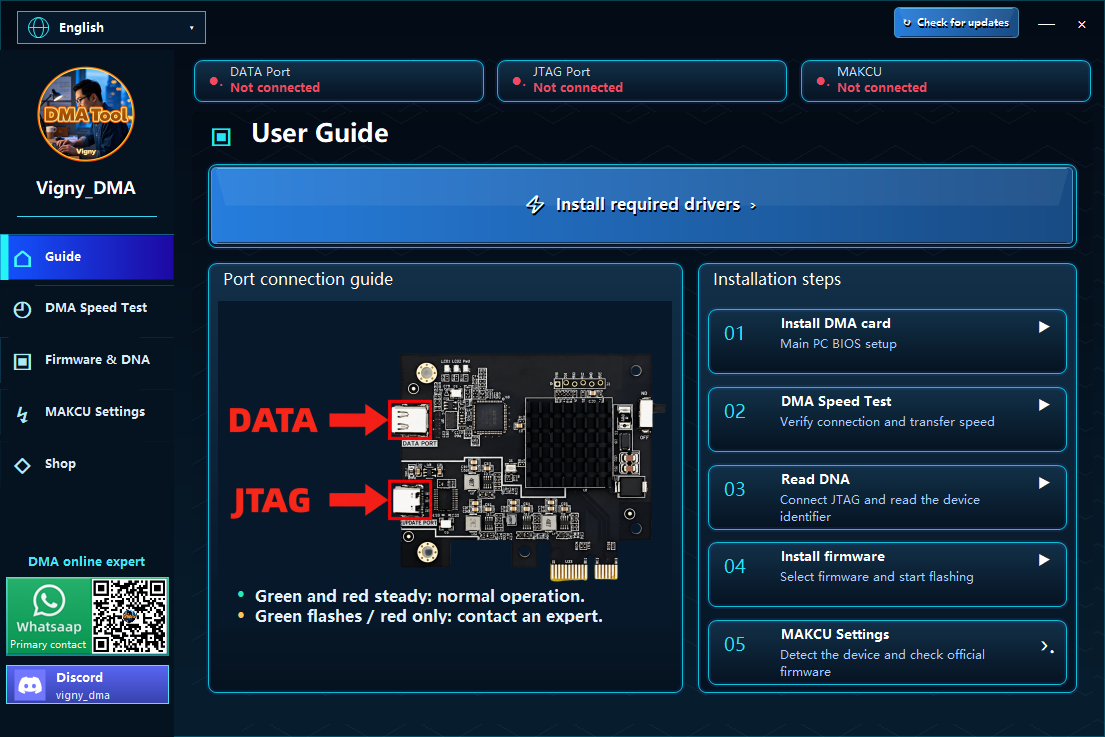
Use this checklist alongside the model-specific setup videos. The current guide covers installing a DMA card, checking transfer speed, reading DNA and installing firmware. Follow the instructions for your exact hardware revision rather than treating every PCIe device as identical.
Shut down and disconnect power before working inside the computer. Follow the computer manufacturer's service and electrostatic-discharge precautions. If you cannot identify a suitable slot or safe installation procedure, ask a qualified technician instead of forcing a connection.
Check the connection path
- Identify the host computer and companion computer, including their operating systems and relevant USB ports.
- Identify each hardware port from the product's guide. DATA and JTAG connections have different purposes; do not swap cables based only on connector shape.
- Use the required dedicated cable and the specified port. Record any adapters or hubs because they may change a test result.
- Get the current Vigny DMA Tool using the download link on the setup page. Obtain drivers from the documented source and verify their purpose before installation.
- Confirm that the intended device is detected. If it is not detected, stop and check power, connection, driver and model information before attempting a firmware write.
Do not disable operating-system security protections as a general troubleshooting shortcut. An unexpected security warning needs an explanation of the software and its source.
Make a DMA speed test repeatable
Record the card model and revision, companion computer, operating system, USB port, cable, driver and firmware versions, tool version and the displayed test settings. Keep those conditions unchanged while comparing repeat runs.
Save the actual output and note interruptions or errors. A single number without its test conditions is not a reliable comparison. No minimum transfer-rate guarantee is asserted here, and a successful transfer test does not prove that every application will work.
If detection or testing fails
Change one variable at a time. Recheck the model guide, reconnect the documented cable after powering down where instructed, and record whether the issue is detection, a test error or inconsistent output. Do not repeatedly flash unknown firmware to diagnose a basic connection fault.
Send support the device model, test conditions and an error screenshot. Remove personal information, order-payment links and credentials from screenshots. Continue with the firmware and DNA checklist only after the intended device is positively identified.
A useful first-test record
Before asking whether a result is normal, record these conditions so the test can be repeated:
- Exact board revision, firmware identifier and tool version.
- Computer model, Windows version and the port actually used.
- Cable, adapter and hub arrangement; note if any of these changed.
- Test settings, repeated results, elapsed time and the exact error text.
This is a troubleshooting record, not a promise of a particular speed. Change one condition at a time and keep the previous result for comparison.
Should I switch off Windows protection to make a test pass?
Do not treat that as a standard step. Microsoft documents Kernel DMA Protection as a memory-access security feature and describes how to check its state. Ask the device supplier or system administrator about a supported configuration rather than turning a warning into an instruction to weaken security. Source: Microsoft Kernel DMA Protection.
How to use a DMA setup: choose the next safe step
For a first setup, work through installation, device detection and a repeatable transfer test in that order. Use only computers you own or are authorized to test. This checklist is preparation for your exact model's instructions, not a universal BIOS recipe.
New buyer: what should I check first?
Start with the DMA PCIe card buying guide and complete-bundle checklist. Confirm motherboard space, companion computer, documented cable path and any required display/controller components before ordering. Do not flash firmware just to check whether a cable is connected.
Connected but not detected?
Stop before writing firmware. Compare the exact model and port labels with the DMA installation videos, then record the driver version, computer ports and the error shown. Keep credentials and private order links out of support screenshots. If you are replacing a cable or changing a port, follow the model's power-off instructions and change one condition at a time.
Detected, but the DMA speed test is inconsistent?
Keep the same computer, port, cable and settings across repeated tests. Note which change altered the result rather than comparing an unexplained number to an online claim. After the device is identified correctly, consult the firmware, DNA and cloud-key guide for the separate firmware stage. Download the free Windows tool from the official resource page.
Buyers of our products get free human-guided driver installation and setup help. DMA bundles include all required dedicated cables; check your selected components before payment.
DMA performance test, benchmark or effect demo: what is being measured?
A DMA speed test reports transfer behavior under its stated conditions. For a stability check, keep those conditions fixed and record repeated outputs, disconnects and errors; do not turn one successful run into a reliability guarantee. A transfer-rate result is not an end-to-end latency measurement, an application-compatibility test or proof of performance in a game.
The homepage practice demo is a browser simulation, not a live DMA hardware test. It lets you explore the interface before shopping; it does not connect to your card or verify firmware, game support or detection status. For actual hardware questions, send support your model, configuration and reproducible test record.